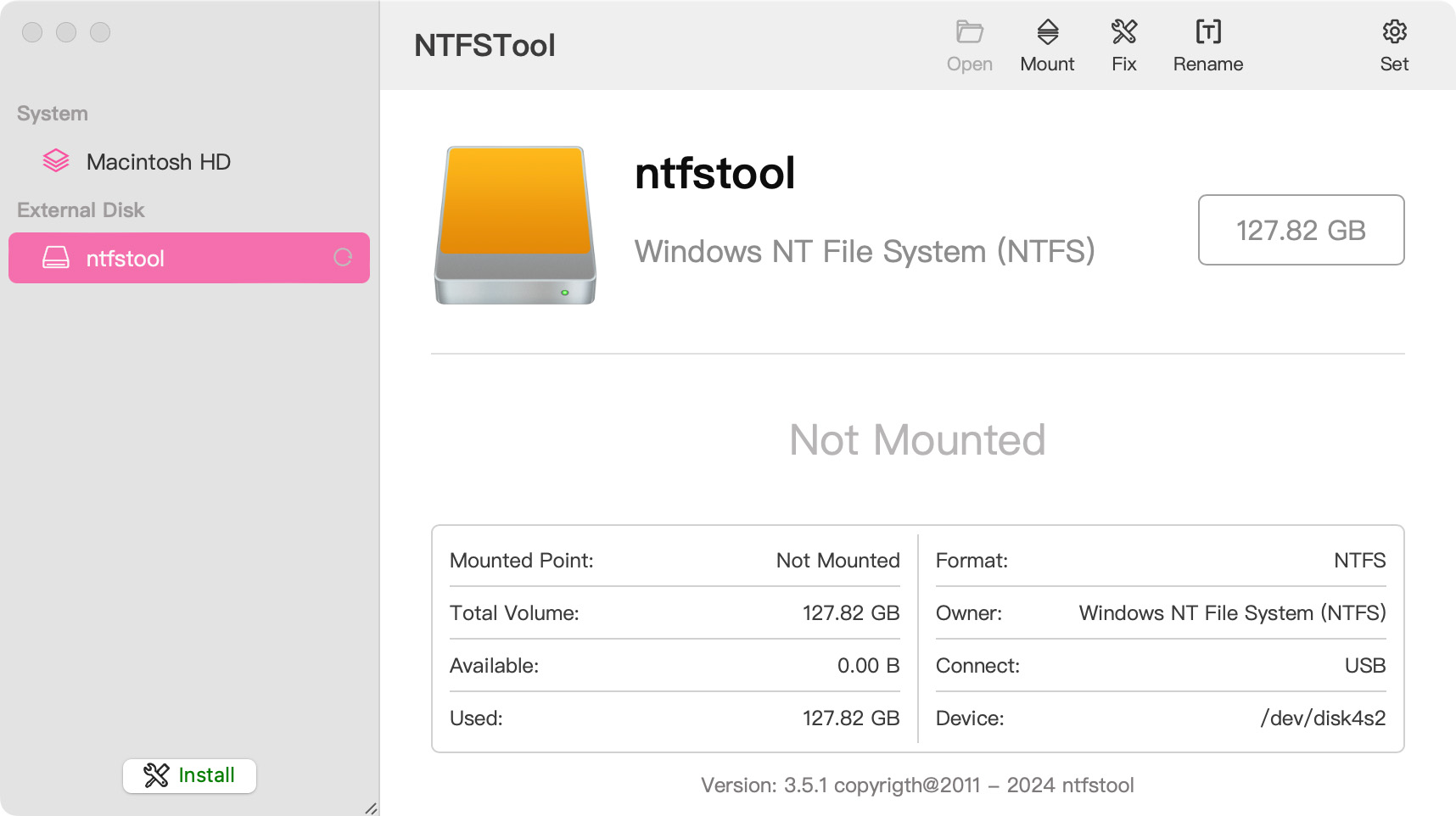
 NTFSTool
Mac에 NTFSTool 설치
현재 버전(권장)
이 웹사이트에서 다운로드, pkg를 열고 설정 완료. NTFS 디스크 연결. 현재 릴리스는 복구 모드나 csrutil 불필요.
안전한 드라이브 작업: NTFSTool은 엄격한 쓰기 검증 프로토콜을 사용합니다. 크로스 플랫폼 파일 시스템의 저수준 특성으로 인해 연결 해제 전 반드시 안전하게 마운트 해제하고 중요 데이터를 정기적으로 백업하세요. 소프트웨어는 "있는 그대로" 제공되며, 부적절한 연결 해제나 드라이브 상태로 인한 데이터 손실 또는 하드웨어 중단에 대해 NTFSTool Inc.는 책임지지 않습니다.
Operational Telemetry: To maintain license verification and troubleshoot filesystem stability, the software collects necessary non-personal technical data, including anonymous hardware identifiers, macOS build version, and error crash logs.
Mac은 기본적으로 NTFS 드라이브에 쓸 수 있나요?
아니요. macOS는 Microsoft NTFS 볼륨을 읽을 수 있지만 추가 소프트웨어 없이는 쓸 수 없습니다. NTFSTool은 완전한 읽기/쓰기 액세스를 제공합니다.
현재 NTFSTool에 커널 확장이나 SIP 비활성화가 필요한가요?
아니요. 현재 NTFSTool은 완전히 드라이버 없이 사용자 공간에서 원클릭 설치됩니다. 커널 확장 단계는 레거시 버전에만 적용, 도움말에 문서화.
NTFSTool은 무료인가요?
NTFSTool은 1회 결제 평생 라이선스입니다(구독 없음, 14일 환불 보장). 마운트 3회를 무료로 체험할 수 있습니다. 최종 가격은 결제 시 지역에 따라 표시되며 세금이 추가될 수 있습니다.
NTFSTool을 발행하는 곳은?
NTFSTool Inc.가 공식 앱을 발행합니다. Apple은 레거시 아키텍처에 커널 확장 서명 자격을 발급했습니다. 현재 빌드는 Developer ID 서명 및 Apple 공증됨. ntfstool.com에서만 다운로드하세요.
지원 Mac 및 macOS 버전은?
Intel 및 Apple Silicon. macOS 10.15 이상 필요.
NTFSTool이 Mac App Store에 있었나요?
예. Mac App Store에 등록되었고 재등록 예정입니다. 현재 스토어에 없음; 이 사이트의 공식 다운로드를 사용하세요.
Paragon NTFS 또는 Tuxera for Mac의 최선 대안은?
NTFSTool은 평생 라이선스 대안입니다: 1회 결제(최종 가격은 결제 시 표시), 드라이버 없는 사용자 공간 설치, 100% 오프라인. Paragon과 Tuxera는 대개 연간 유료이며 macOS 메이저 업데이트마다 갱신이 필요한 경우가 많습니다. 비교: https://ntfstool.com/vs-paragon-tuxera.html
레거시 kext 버전(기록)
다음 단계는 역사적 커널 확장 빌드에만 적용됩니다. 엔지니어링 역사 및 해당 버전 사용자를 위해 보관. 현재 설치 프로그램에는 따르지 마세요.
Reason for Installing the NTFSTool Kernel Extension
Due to Microsoft's licensing restrictions, macOS has removed write support for the NTFS disk format. Historical NTFSTool releases therefore installed an Apple-signed kernel extension. This is engineering heritage. The current release does not use these steps.
Requirements and Steps for Installing Drivers in macOS Kernel (legacy only)
For Intel Chip Systems
Requirements: Disable System Integrity Protection (SIP)
- Enter system recovery mode, disable System Integrity Protection (SIP). Completely shut down your Mac, then start it up, and immediately press and hold Command+R during startup until the Apple logo appears for 3 seconds, then release the button and wait to enter Recovery mode
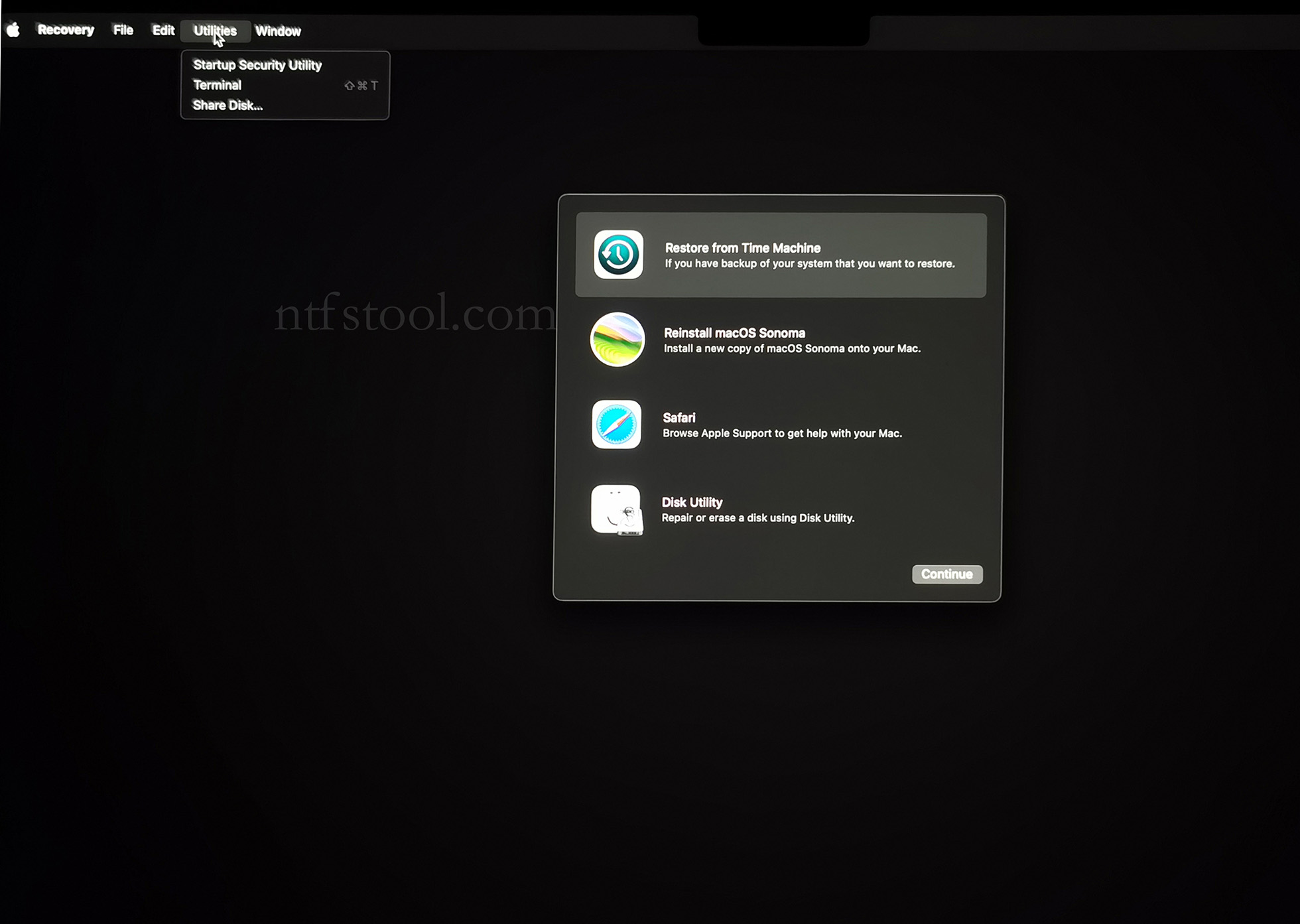
- Click 'Utilities' in the top toolbar, select 'Terminal'
- Type 'csrutil disable' in the terminal, then press Enter
- Close the terminal and restart your Mac
- Related Screenshots
For Apple Silicon systems
Requirements: Disable SIP; enable Allow user management of kernel extensions from identified developers.
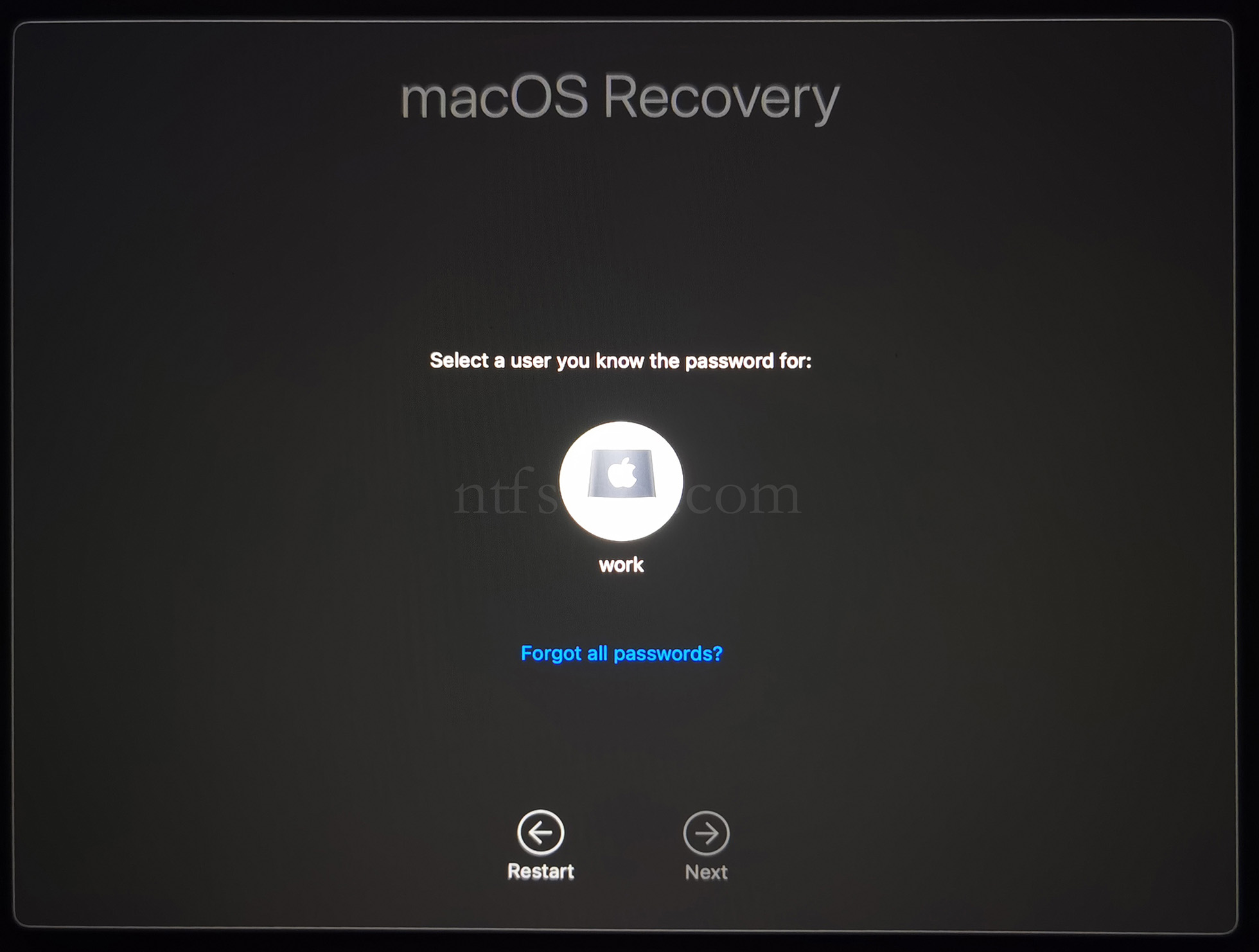
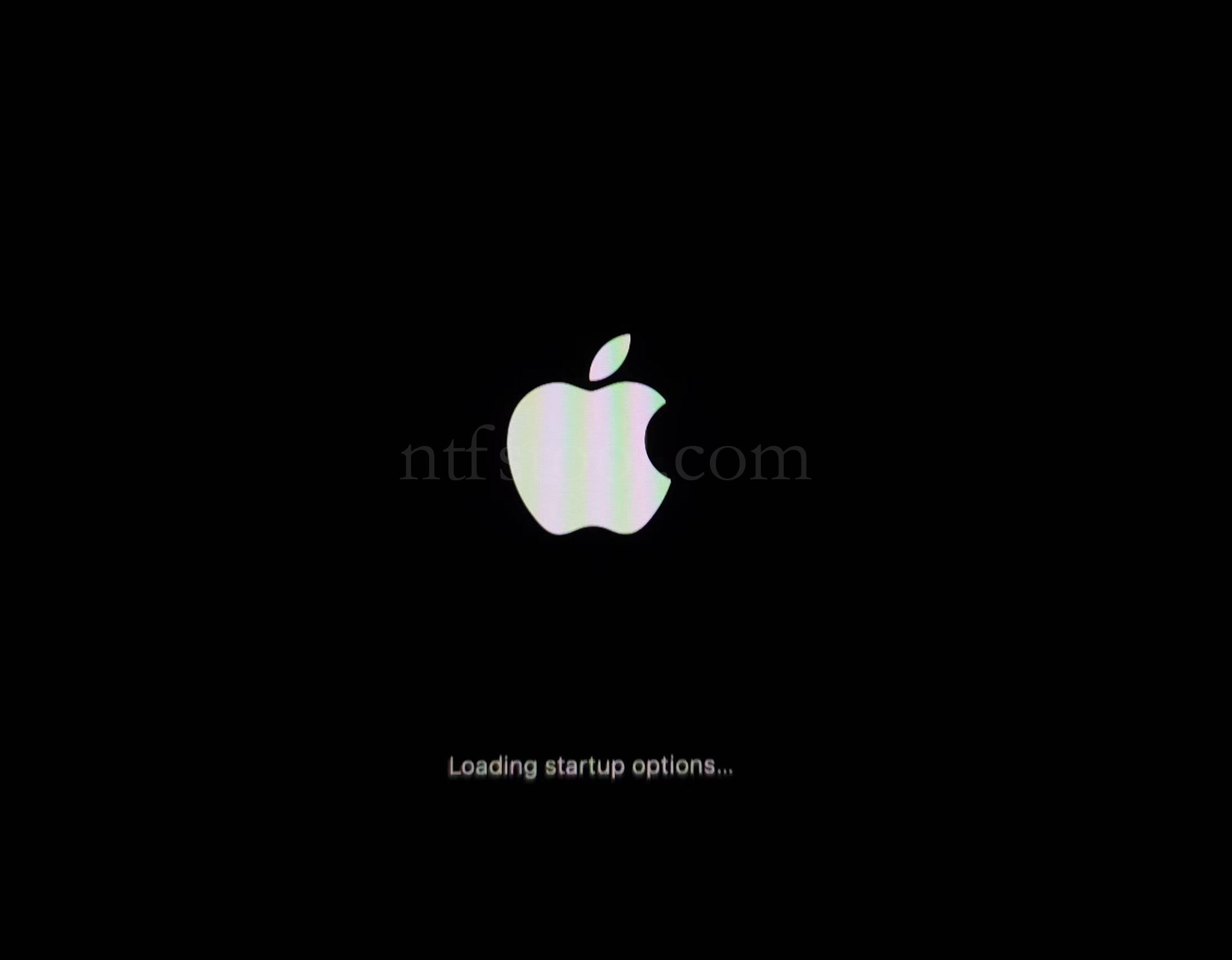
- Restart and hold the power button until Loading startup options appears, then enter recovery
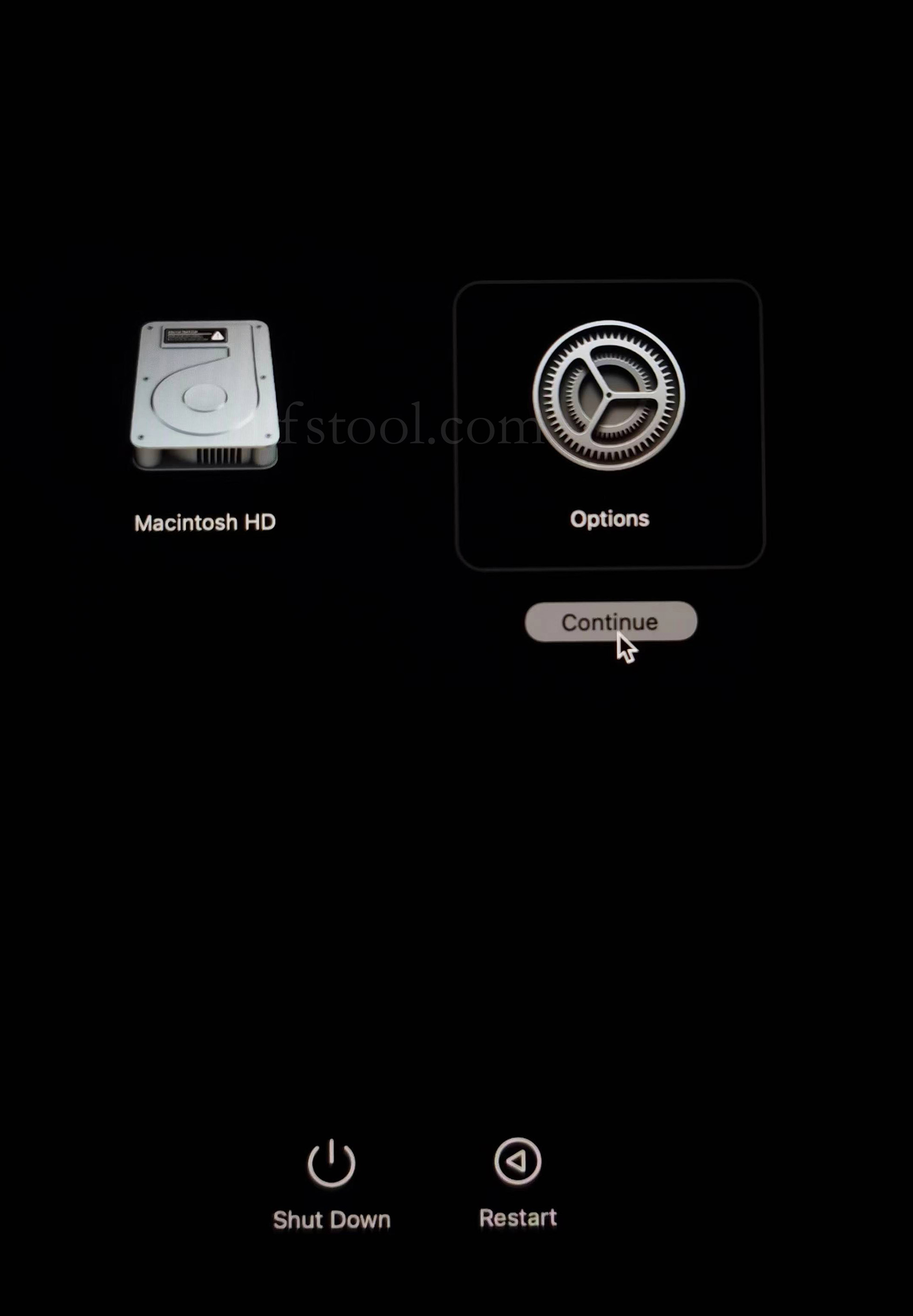
- Select Options, Continue
- Select the admin user and enter the password
- Utilities → Terminal
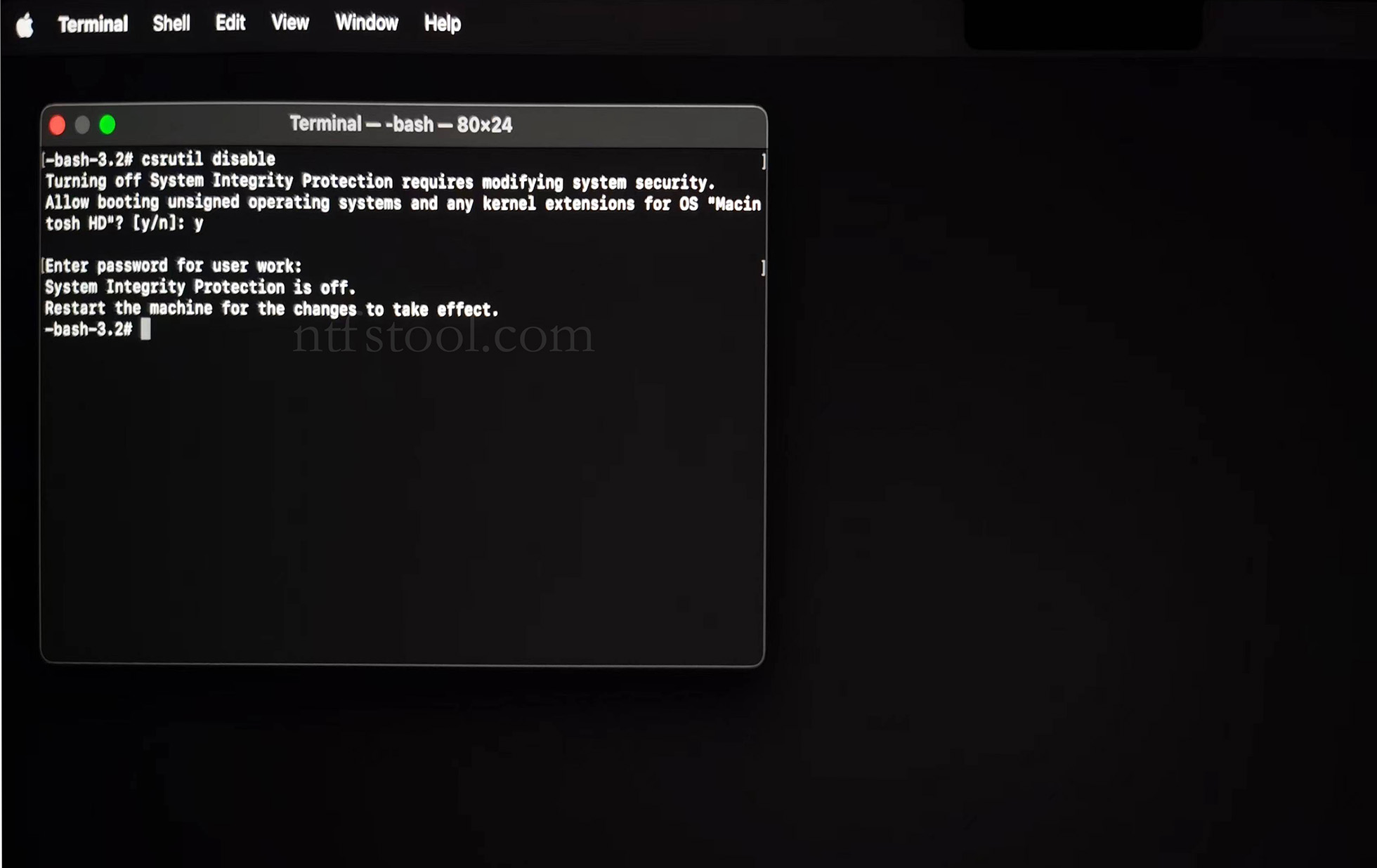
- Type csrutil disable, press Enter
- Close Terminal
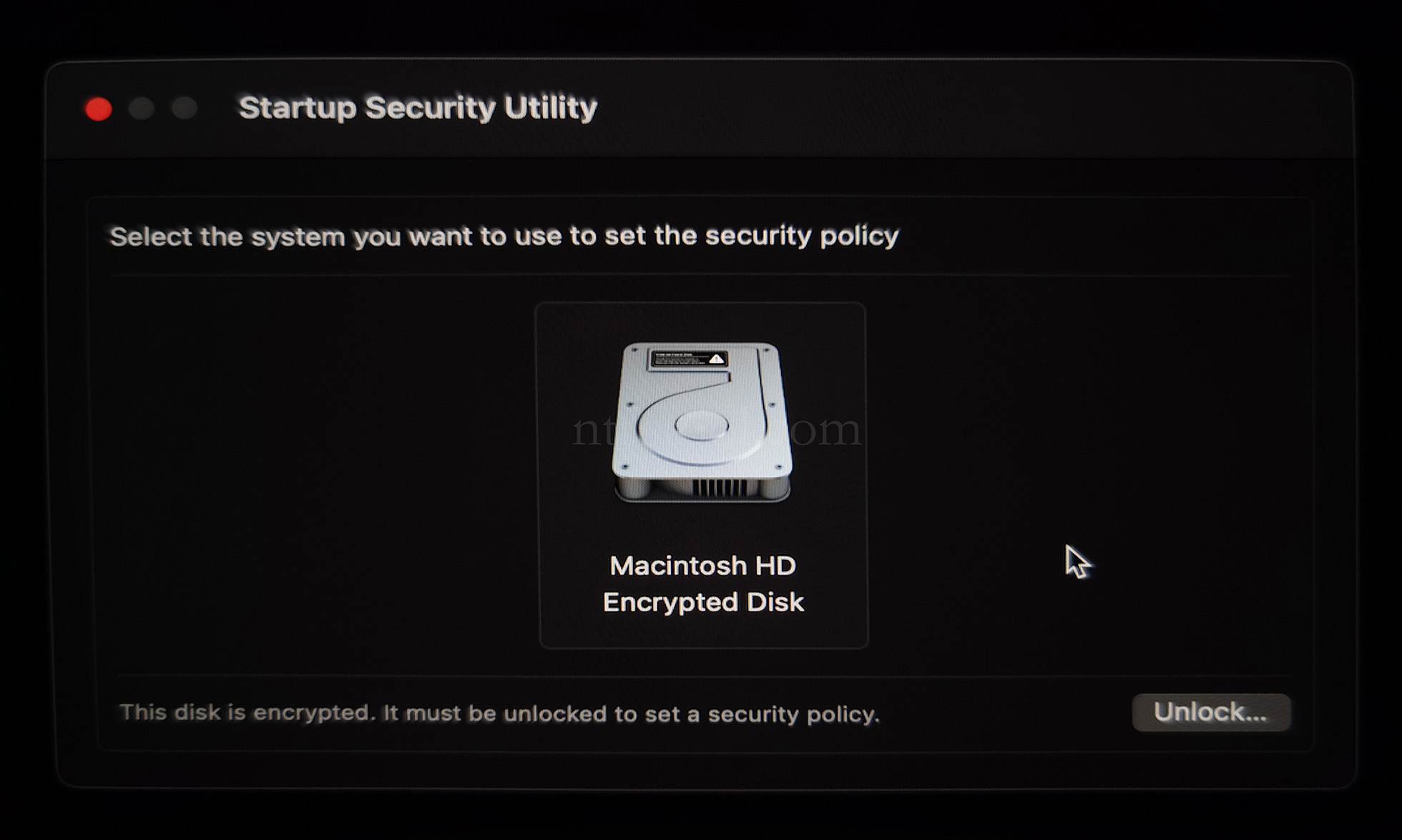
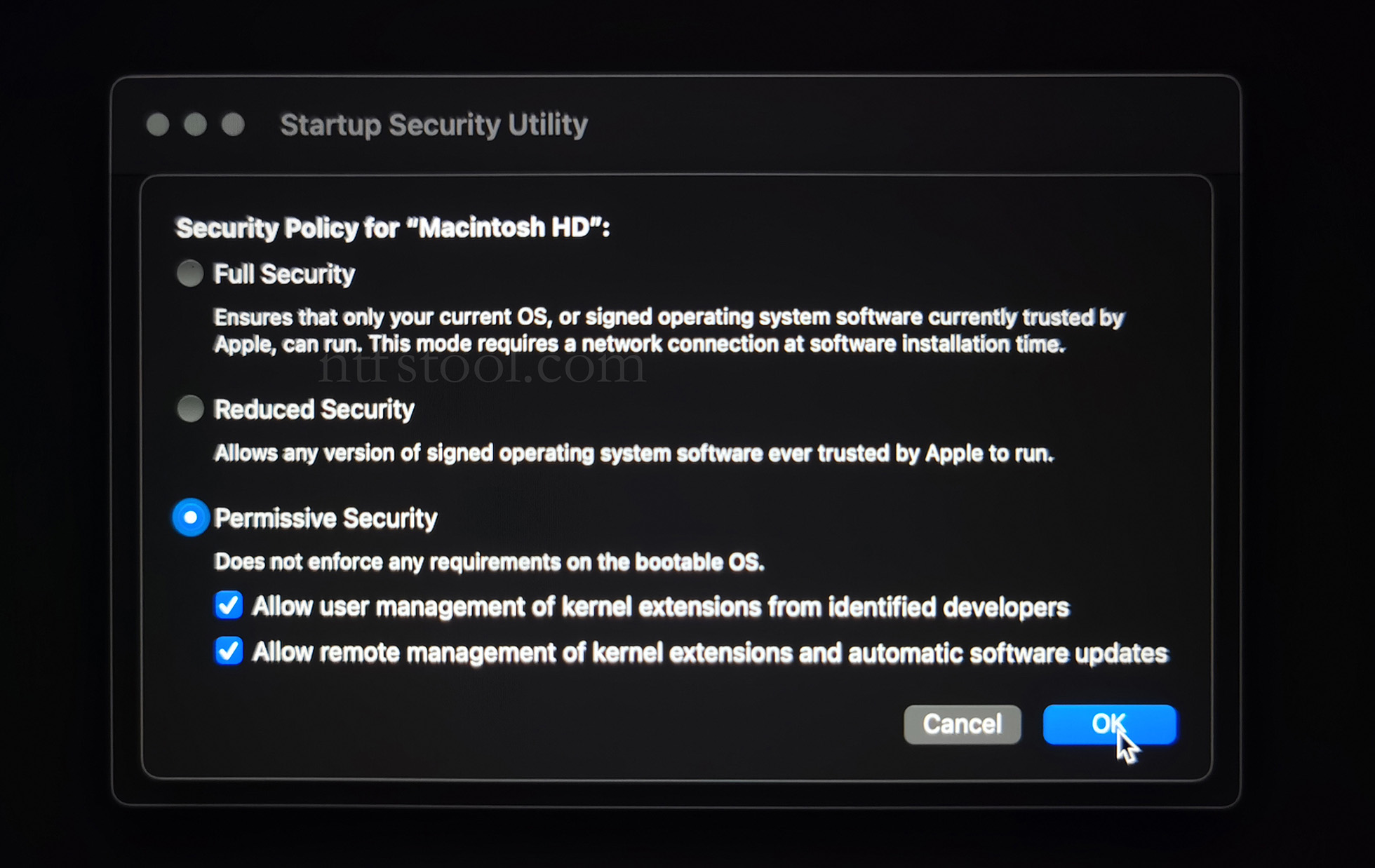
- Utilities → Startup Security Utility
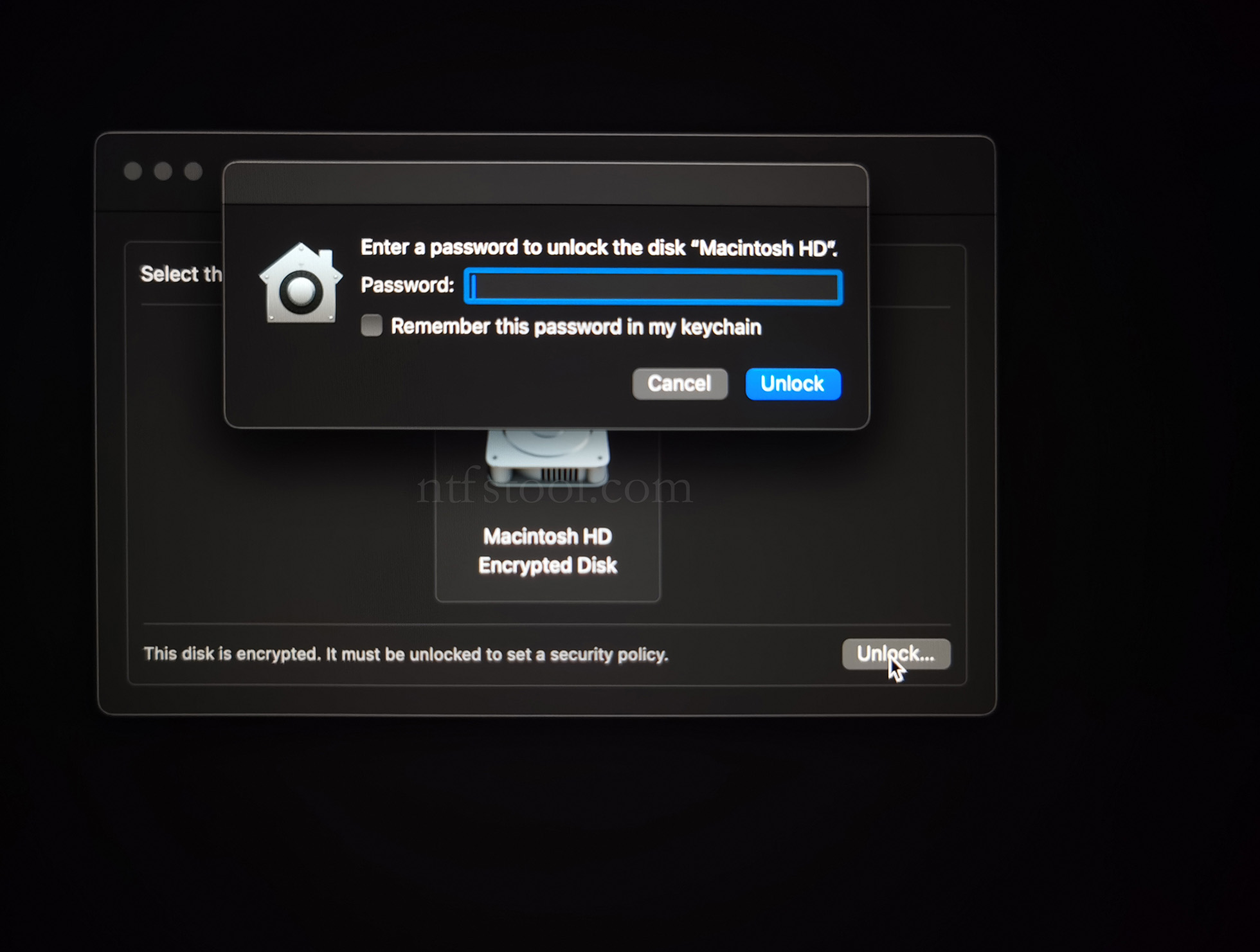
- Select the system disk, then Security Policy
- Check Reduced Security and Allow user management of kernel extensions from identified developers
- Restart from the Apple menu
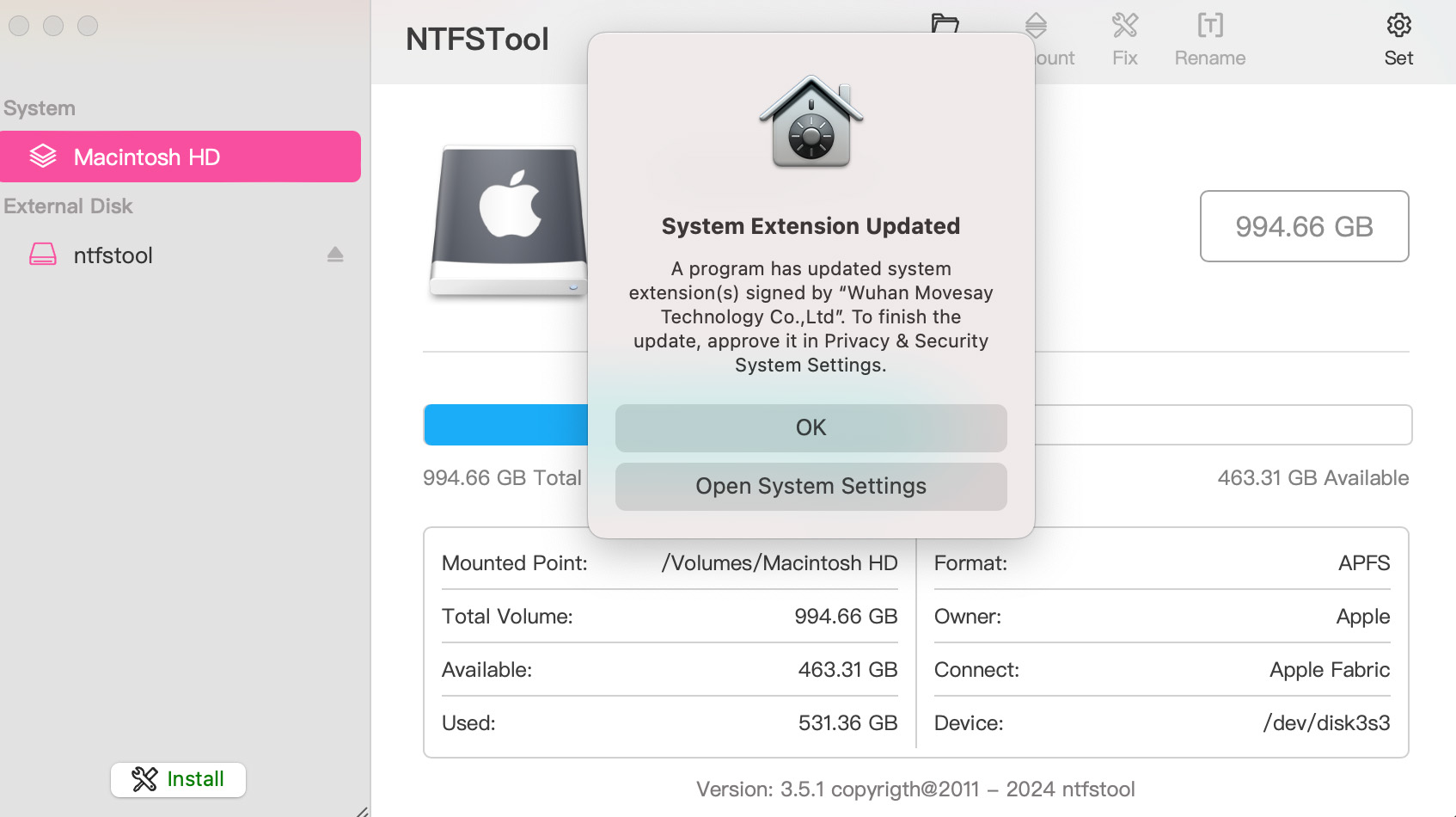
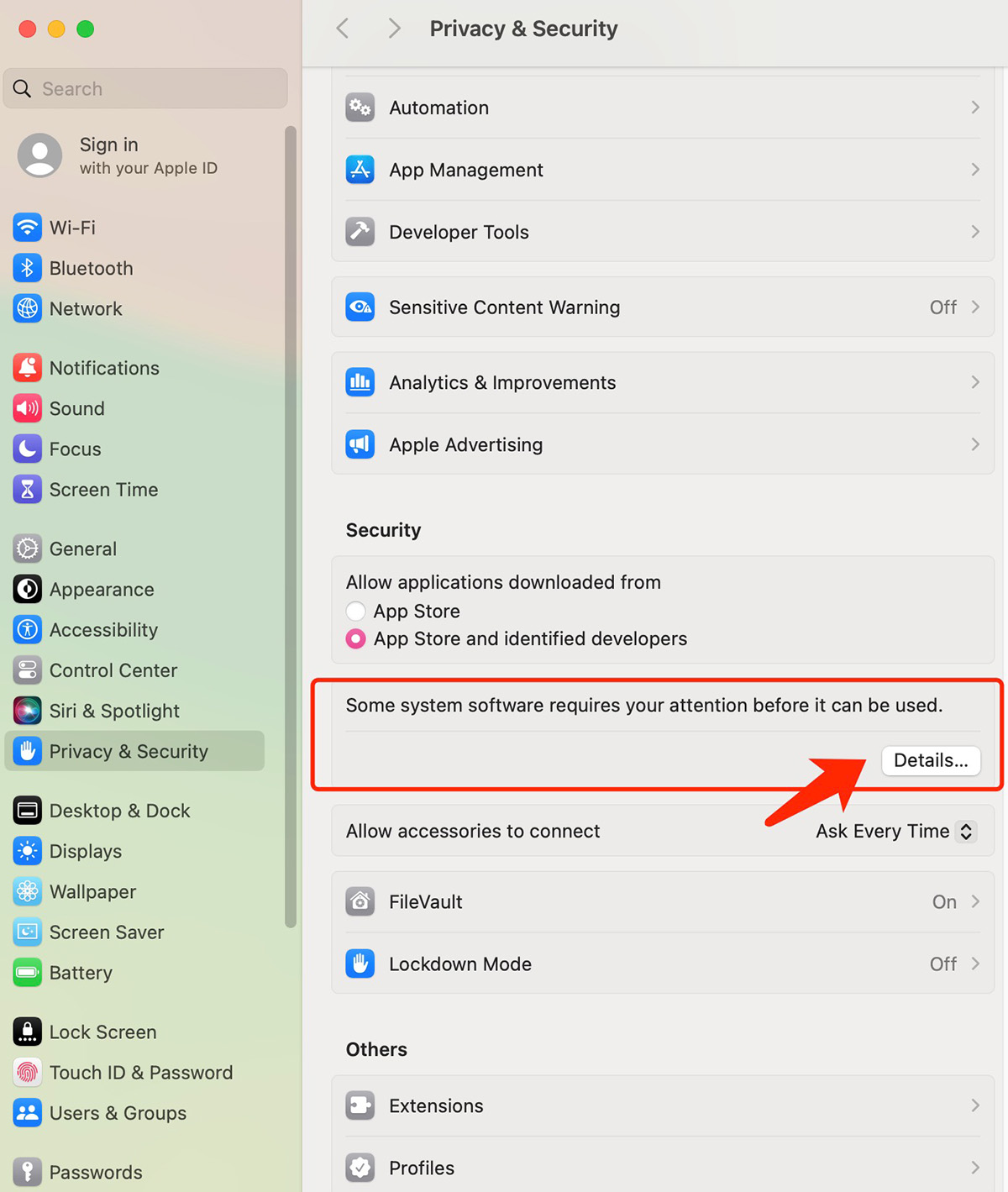
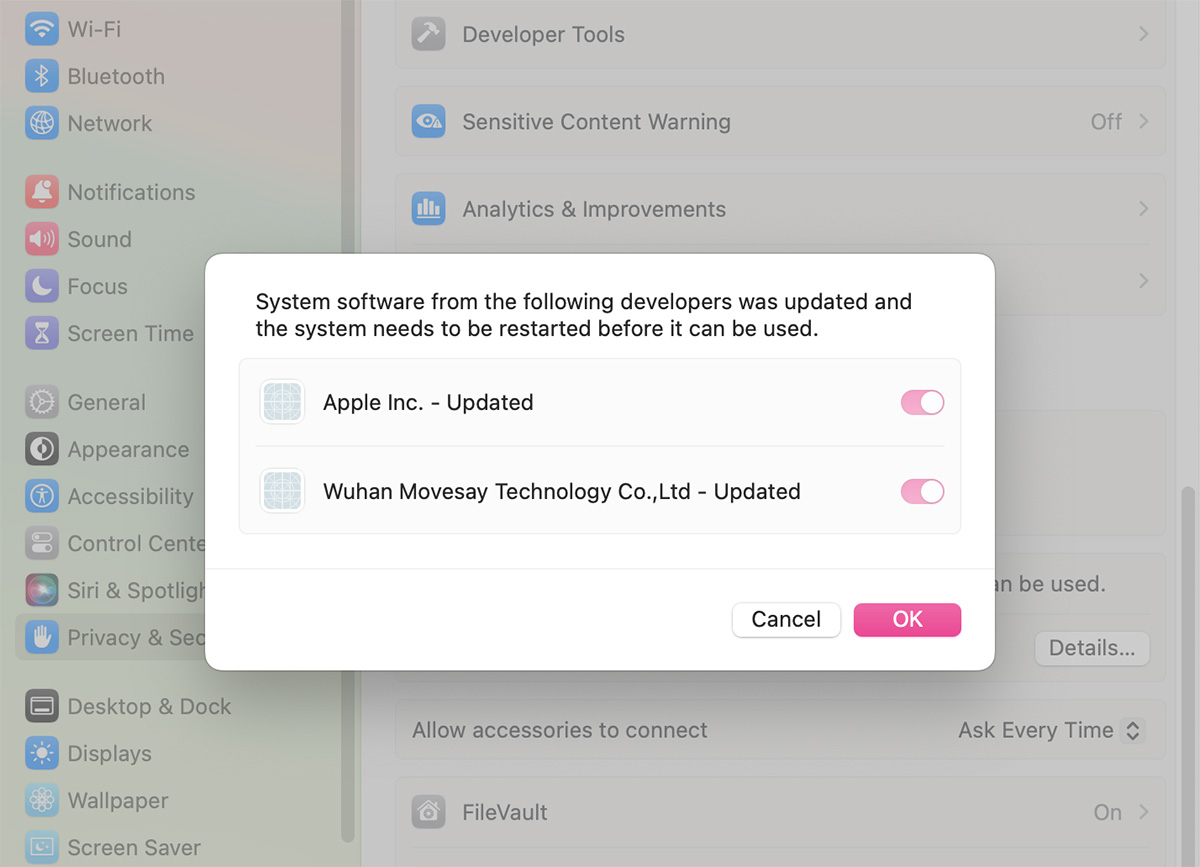
- Open System Settings → Privacy & Security, then allow the extension if prompted
- Related Screenshots